My First Picture Took 178 Black Cells and 408 Orange Cells
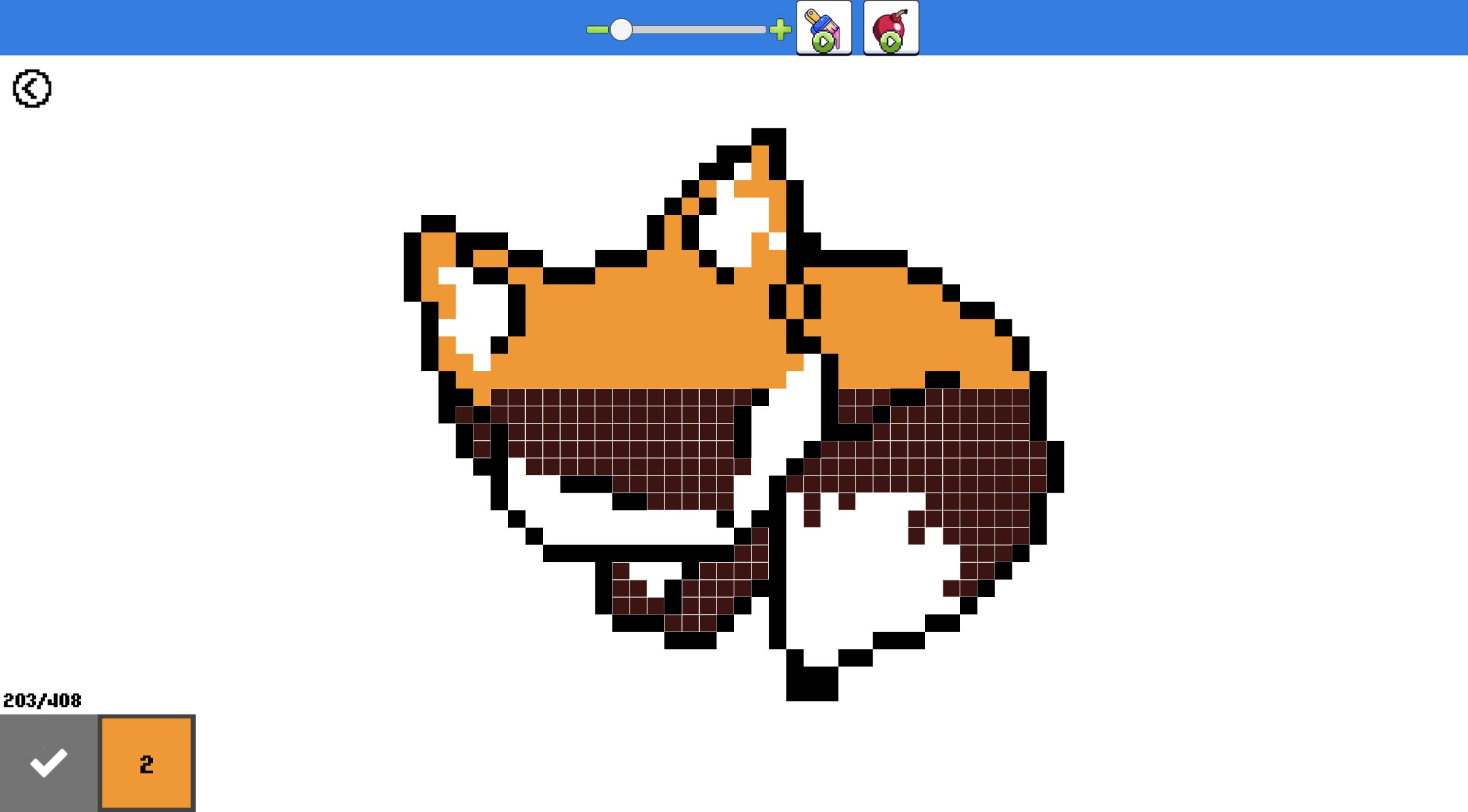
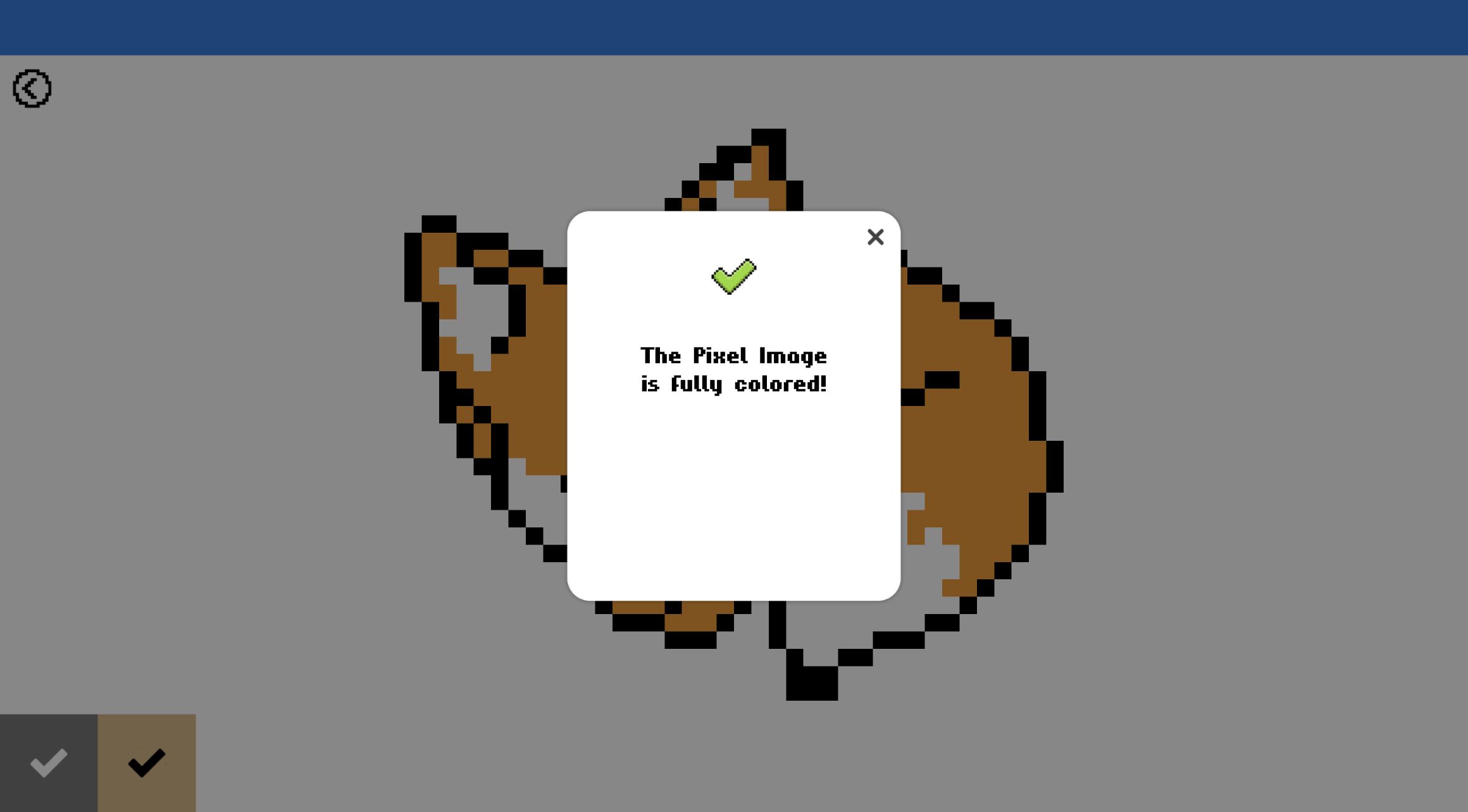
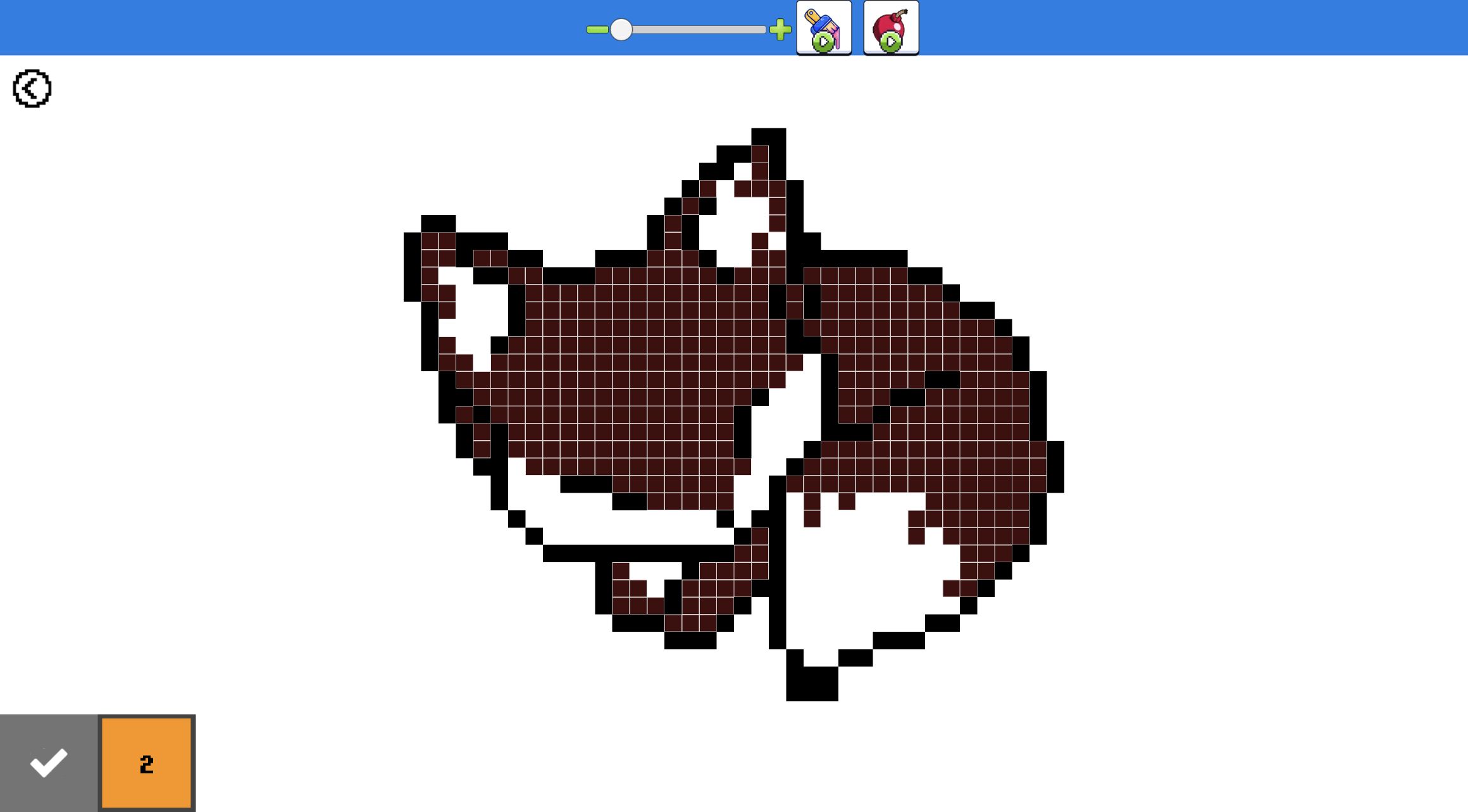
I finished the first picture in Color Pixels - Coloring by Numbers: an orange fox outlined in black, built from 586 fillable cells. The black palette counter required 178 placements and the orange counter required 408. When the last orange square landed, both palette tiles changed to check marks and the game displayed the unmistakable result, 'The Pixel Image is fully colored!' That complete start-to-result loop is a better description of the game than calling it a passive coloring book. It is a long, orderly search task with a visible numerical finish line.
The final fox was charming, but the satisfaction came from watching structure replace the gray template. Black established the ears, face, paws, tail edge, and inner markings. Orange then connected the larger body regions. The picture did not ask me to invent colors or judge shading; every decision was about finding the cells that matched the active number. That makes the experience calming when I wanted a concrete checklist, although completing hundreds of individual placements demanded more patience than the cute opening gallery suggested.
The Gallery Offered More Variety Than the Two-Color Fox Suggested
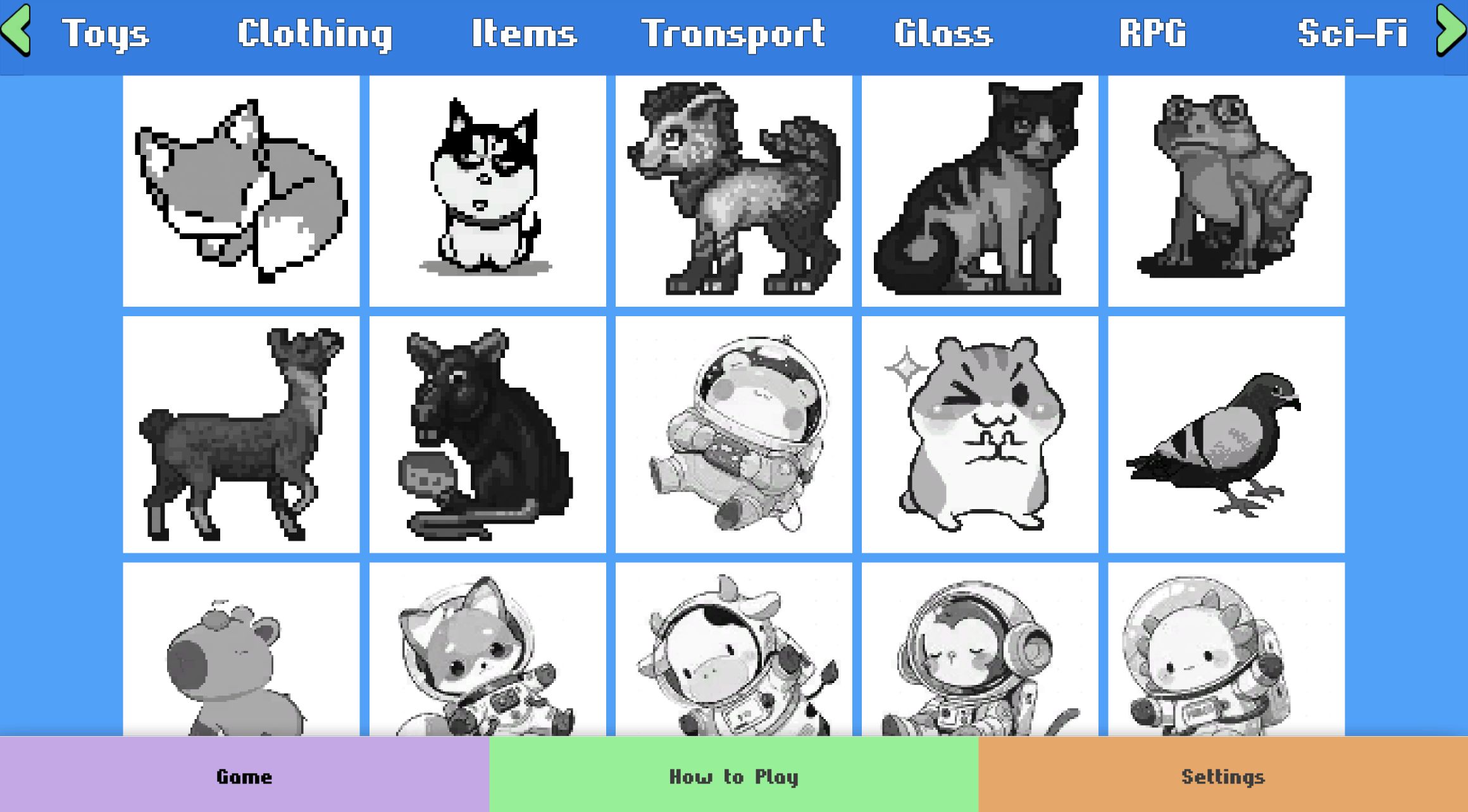
The game opened directly onto a broad gallery rather than a title menu. I could see tabs for Toys, Clothing, Items, Transport, Glass, RPG, and Sci-Fi, with arrows indicating more categories beyond the visible row. The first screen mixed cats, a horse, a bear, a frog, a deer, a hamster, a pigeon, and several animals in space helmets. That range makes choosing a subject feel less rigid than working through one mandatory sequence.
I selected the first fox image because its silhouette was readable and its palette contained only two colors. That was a useful beginner choice, but it was not a tiny tutorial icon: the counters eventually revealed 586 cells. Players who want quick completions should not assume a simple palette means a short picture. Before committing, I would look at both the silhouette and the apparent grid density. The back arrow remained visible during the puzzle, so returning to the gallery was straightforward if a picture felt too large.
Zooming In Turned a Gray Silhouette into a Searchable Grid
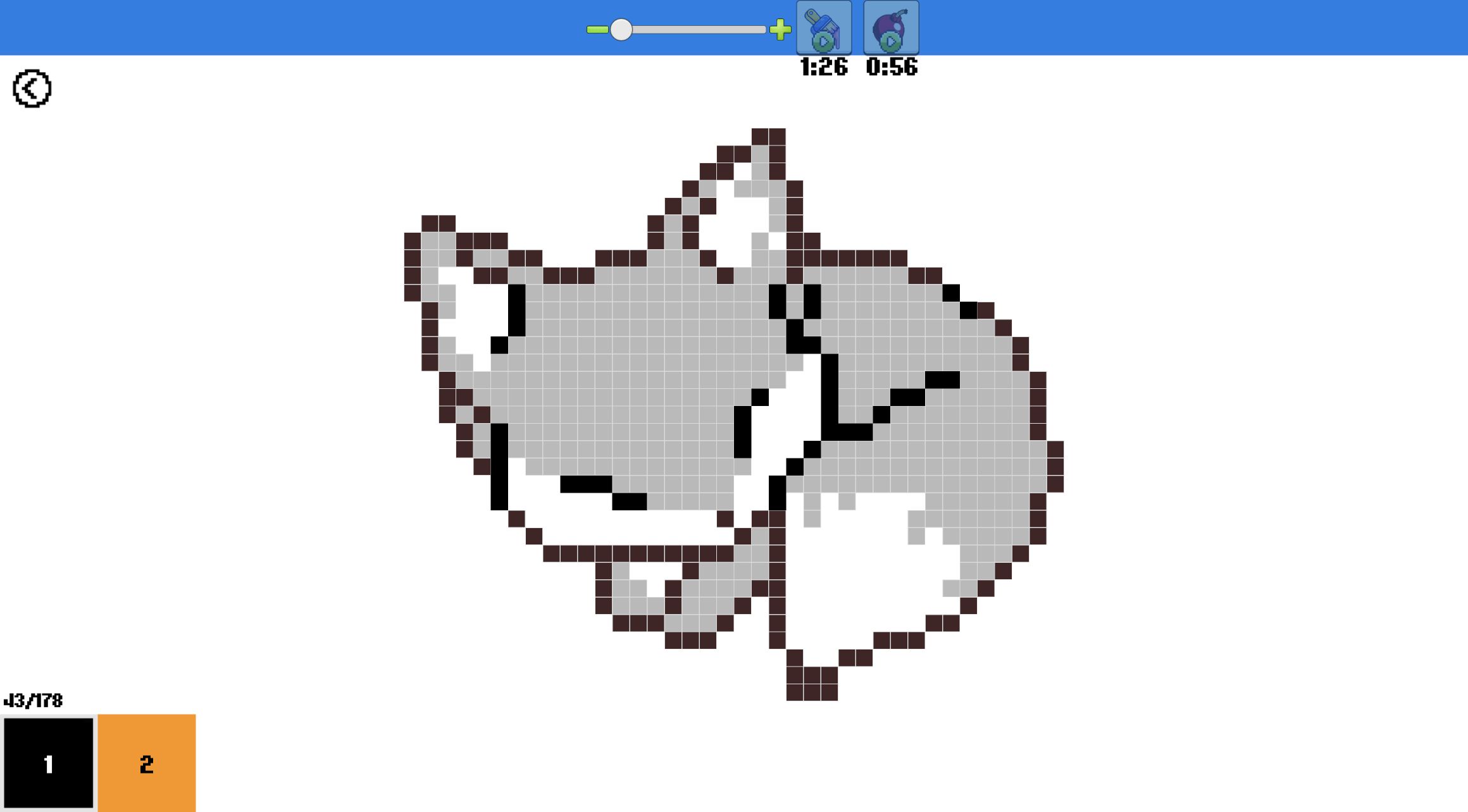
The top zoom control was essential rather than decorative. At the widest view, the entire fox fit comfortably on screen, which helped me understand the outline and see where completed black pixels were accumulating. The tradeoff was that the tiny number labels disappeared into the gray cells. I could recognize highlighted areas by color, but I could not reliably read each numeral. The wide view worked best as a map and progress check, not as the place to make every placement.
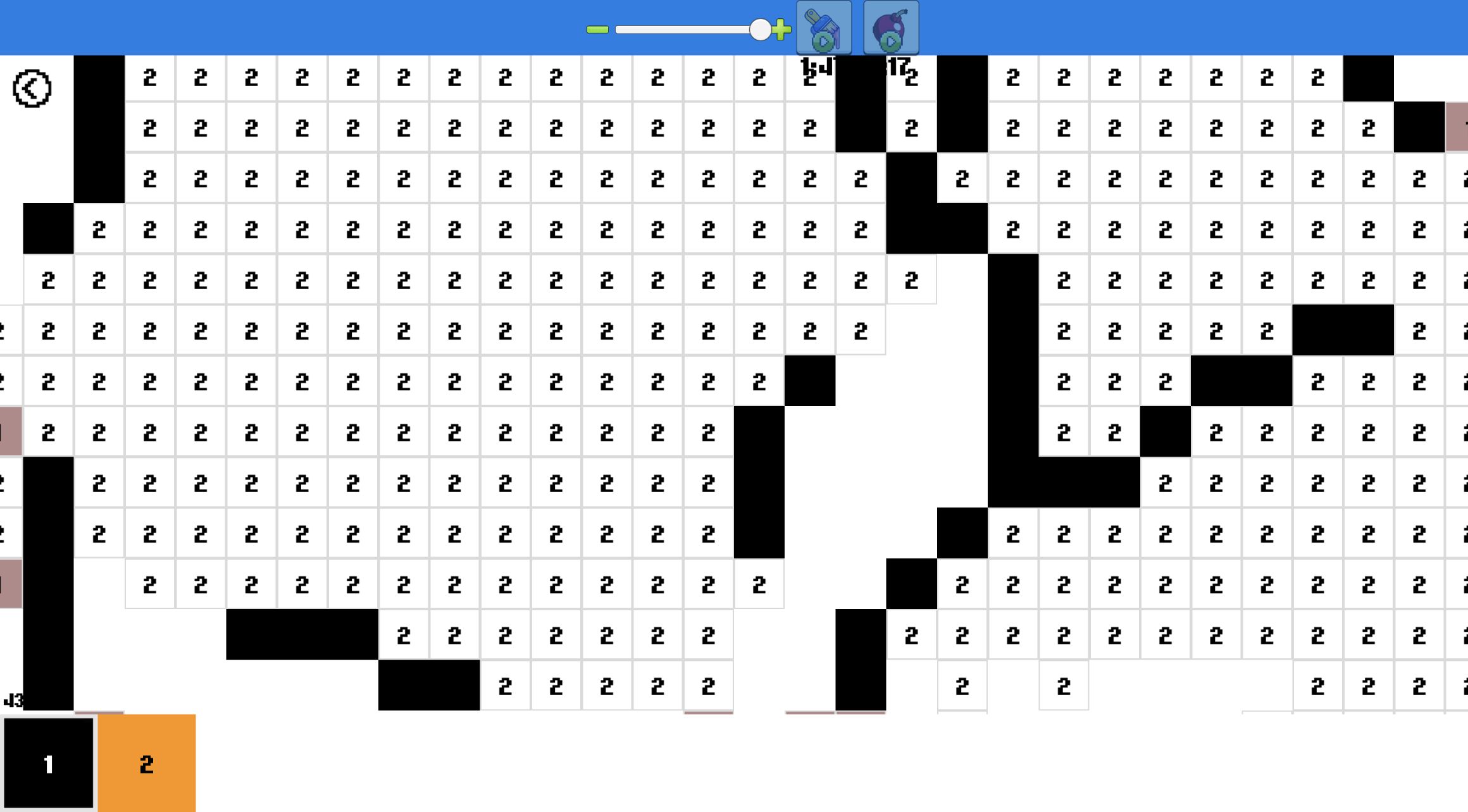
Pushing the slider toward its maximum enlarged each cell enough to expose the printed 1s and 2s. That made exact selection much easier, especially along alternating borders where black and orange met. The enlarged view covered only part of the picture, so I regularly moved back to the wide composition to reorient myself. My most comfortable rhythm was to zoom in for precise runs, then zoom out to identify the next dense cluster. A one-button plus control beside the slider also made stepping upward quick.
A Wrong-Number Click Cost No Progress, but It Exposed the Game's Feedback
My clear mistake happened while color 1 was active. I clicked a cell marked 2, expecting the palette selection to switch or the square to accept orange. It did neither: the counter stayed at 1 of 178 and the wrong square remained unfinished. The reaction was restrained, so there was no life loss or penalty screen, but the unchanged counter made the error clear. From then on I treated the palette as a strict mode selector—choose a color first, then touch only cells bearing its number.
Matching cells were tinted while their color was selected, which reduced blind hunting. Once clicked correctly, a black cell became a solid part of the drawing and no longer competed with the remaining targets. The counter at the lower left was the most useful source of truth, particularly at high zoom when the whole fox was outside the viewport. I never had to wonder whether a click registered: the artwork changed immediately and the total advanced. That direct feedback helped the repetitive work stay deliberate rather than mushy.
Finishing Black First Made the Orange Pass Much Faster
I completed all 178 black cells before seriously working on orange. That choice created a strong visual skeleton: the fox's face split, raised ear, lower paws, and tail curve were all legible while the interior was still unfinished. More importantly, the color 1 tile changed into a check mark. With only one active color left, there was no longer any need to bounce between palette buttons or remember which number I was hunting.
The remaining orange stage was larger—408 cells—but it moved faster because many targets formed continuous body areas. Dense blocks across the head and tail were easier to scan than the scattered outline pixels. A few isolated cells near the lower paw were easy to miss; I reached 401 of 408, then 407 of 408 before spotting the final small square. That last-cell hunt was the session's most genuine friction. The completion counter saved it from becoming guesswork, but a stronger automatic focus on the final target would have been welcome.
The Best Fit Is a Patient Player Who Enjoys Visible Progress
Color Pixels worked best for me as a low-pressure concentration exercise. There was no timer pushing the picture, no lives to lose, and no opponent interrupting the search. I saw no login requirement, purchase prompt, or advertisement during the completed desktop picture. The interface did show two timed tool icons above the canvas, but the standard palette-and-click method was enough to finish without relying on them. The core reward was simply converting a blank numbered grid into a clean image one verified cell at a time.
The repetition will be the dividing line. Players who like completion bars, hidden-picture reveals, cross-stitch patterns, or methodical cleanup should find the 178-and-408 count satisfying. Anyone wanting freehand drawing or quick levels may find a 586-cell first choice slow. The catalog declares desktop, Android, and iOS support, but the local mobile fullscreen route was blocked by the browser's security policy during this review. I therefore completed the representative loop only in desktop Chrome and am not making a device recommendation or claiming a verified touch experience.